
How to Update Drivers on Windows 11 — Complete Guide
Learn how to find and update outdated drivers on Windows 11. Step-by-step guide covering Device Manager, Windows Update, and Musix Driver Care.
Why Keeping Drivers Updated Matters
Device drivers are the software that allows Windows to communicate with your hardware — graphics cards, network adapters, audio devices, printers, and more. Outdated drivers can cause:
- System crashes and blue screens (BSOD)
- Slow performance and lag
- Hardware not working properly
- Security vulnerabilities
- Compatibility issues with new software
Method 1: Using Device Manager (Manual)
Windows has a built-in tool called Device Manager that lets you update drivers one at a time:
- Right-click the Start button and select Device Manager
- Expand the device category you want to update
- Right-click the device and select Update driver
- Choose Search automatically for drivers
- Windows will search for and install any available updates
Limitation: Device Manager only searches Microsoft's catalog, which may not have the latest manufacturer drivers.
Method 2: Windows Update
Windows Update occasionally includes driver updates:
- Open Settings → Windows Update
- Click Check for updates
- Look under Optional updates → Driver updates
- Select the drivers you want and click Download & install
Limitation: Not all driver updates appear here, and updates can be delayed by weeks or months.
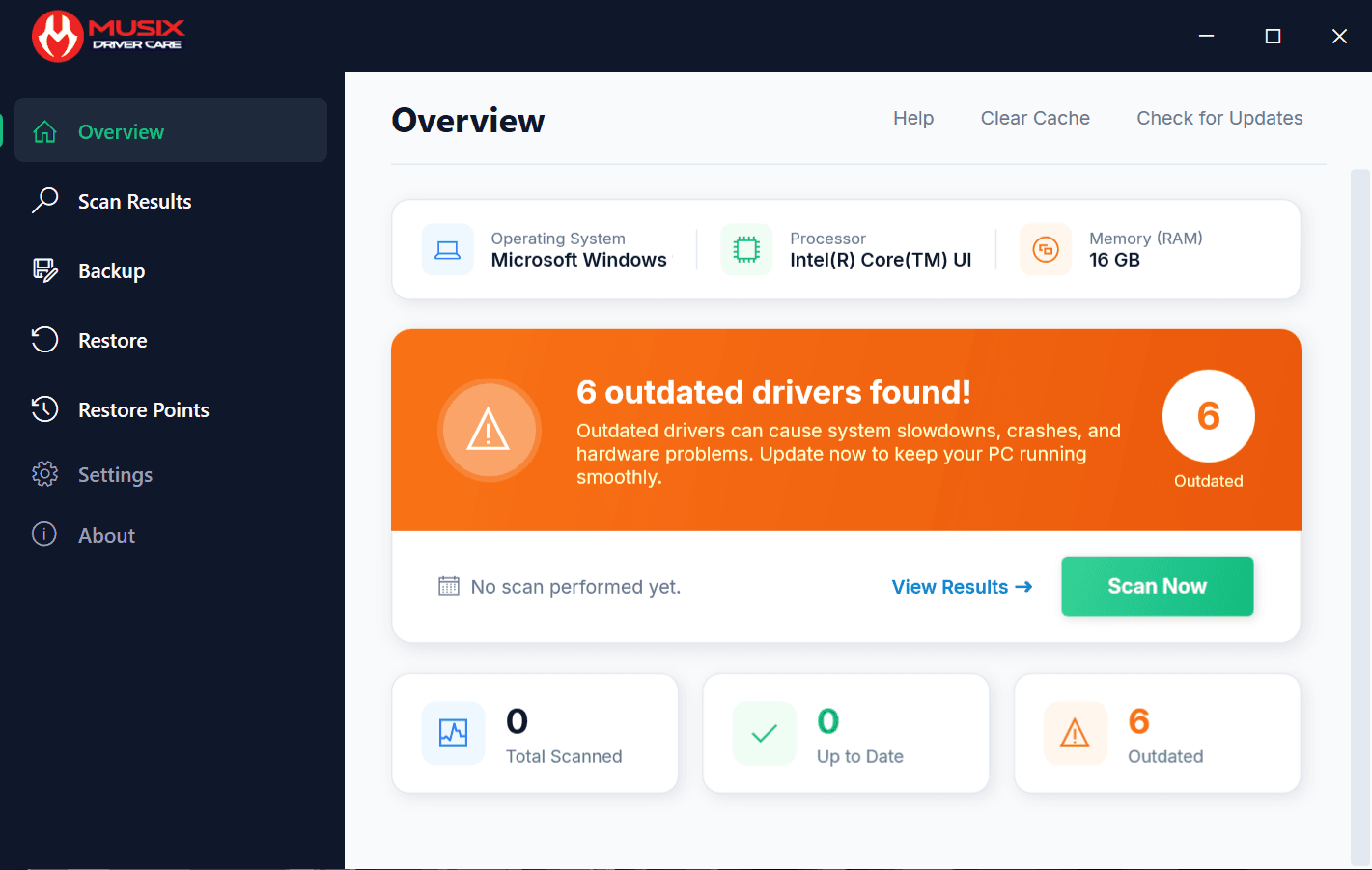
Method 3: Using Musix Driver Care (Recommended)
Musix Driver Care automates the entire process by scanning all your installed drivers against a comprehensive database:
- Download Musix Driver Care from our website
- Click "Scan Now" to scan all installed drivers
- Review the results — the app shows which drivers are outdated
- Click "Update" to download and install the latest WHQL-certified drivers
Advantages of Musix Driver Care:
- Scans all drivers at once (not one at a time)
- Downloads from manufacturer sources
- Only installs WHQL-certified drivers
- Creates a system restore point before updates
- Backs up current drivers before replacing them
- Supports scheduled automatic scans
Tips for Safe Driver Updates
- Always back up first — Musix Driver Care does this automatically
- Create a restore point — in case something goes wrong
- Update one driver at a time if you're troubleshooting
- Restart after updating — some drivers require a reboot
- Use WHQL-certified drivers — they've been tested by Microsoft
Frequently Asked Questions
Can outdated drivers slow down my PC? Yes. Outdated GPU drivers can reduce gaming performance by 20-40%. Network drivers can cause slow internet speeds. Audio drivers can cause latency and crackling.
Is it safe to update all drivers at once? Yes, as long as you use WHQL-certified drivers and create a backup first. Musix Driver Care handles both automatically.
How often should I update drivers? We recommend scanning weekly. Critical drivers (GPU, network, security) should be updated as soon as new versions are available.
Ready to update your drivers? Download Musix Driver Care — it's free to scan.